Team HMIS Performance Reports
Listed below is info about our online Team HMIS Performance Reports.
Locating Team HMIS Performance Reports
Screenshots
Locating Team HMIS Performance Reports
- Visit teamhmis.com
- Hover over "Resources" link at top + select your CoC
- In "REPORTS" section, view the performance reports
Screenshots
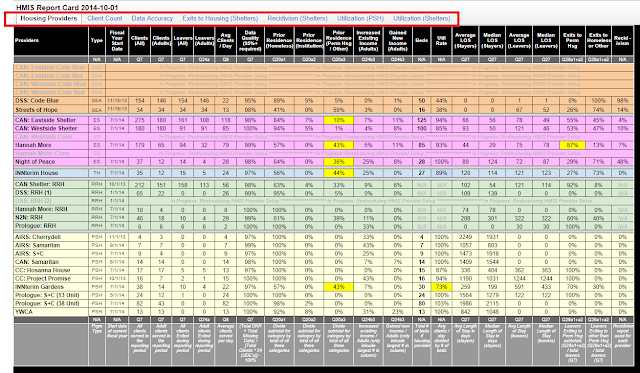

"Housing Providers" report. Note the tabs at the top. Color codes based on housing type (Seasonal, ES, RRH, TH, PSH)


Graph page. Note the tabs at the top to navigate to various graphs.
Accountability + Collaboration + Transparency
- Accountability
- Increased data accuracy + data entry timeliness
- Increased performance measures
- Increased awareness and funding
- Facilitates CoC rating/ranking and prioritization
- Facilitates monitorings and audits
- Collaboration
- Analysis of data for successes and areas in need of improvement
- Sharing of best practices, ideas, methodologies, workflows
- Referrals increased to those providers in need
- Resources made available to those providers in need
- Transparency
- Data easily accessible for everyone to view on a single page
- Client counts, performance measures, service counts, etc.
- Decreases workload for all HMIS users + admins
- Analyze + monitor program performance by program type
Automation + Data Sources + Hardware + Software
- Data Sources
- HUD CoC APR (canned ServicePoint report)
- Client Served Report (canned ServicePoint report)
- Daily Unit Report (canned ServicePoint report)
- Shelter Recurrence (automated w/scheduler)
- Hardware
- Chromebook
- Software
- Data: ServicePoint
- Data Page: Google Sheets (free)
- Simple formulas to automate totals, %'s, etc.
- Graphs: Google Docs (free)
- Simple formulas to automate graphs
- Instructions: Blogger (free)
- Storage: Google Drive (free)
- Website: Google Sites (free)